Attendant Guide
If you work at a RinsePay-enabled car wash, the Attendant tab lets you manage your shifts and view transactions at your assigned location.
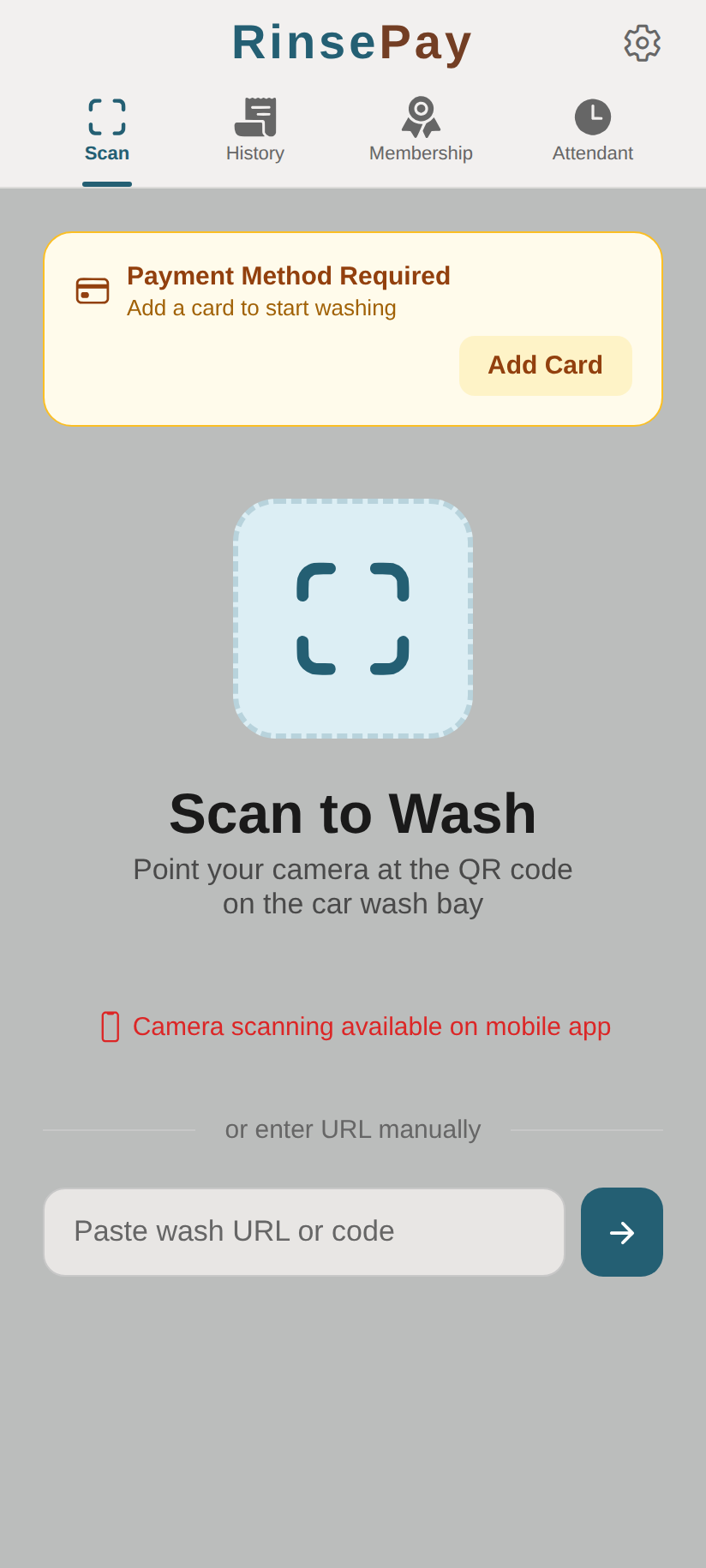
What Attendants Can Do
- Clock in and out of shifts
- View transactions at your working location
- Request refunds for customers when needed
- Switch locations if you work at multiple sites
Getting Started
- Your car wash owner adds you as a staff member
- You'll receive an invitation to create your RinsePay account
- Log in and the Attendant tab appears in your navigation bar
- Select your working location from the dropdown
Attendant Tab
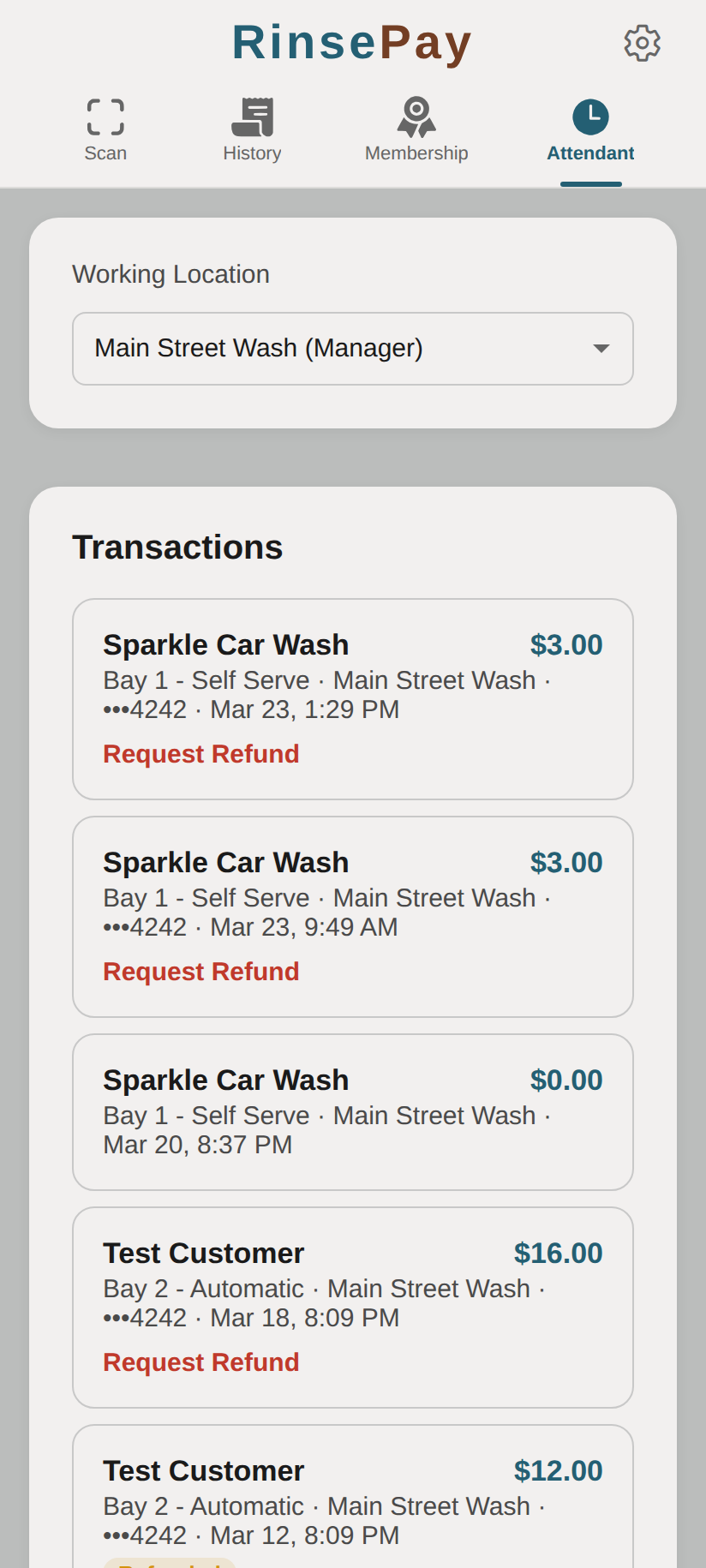
Select your working location from the dropdown:
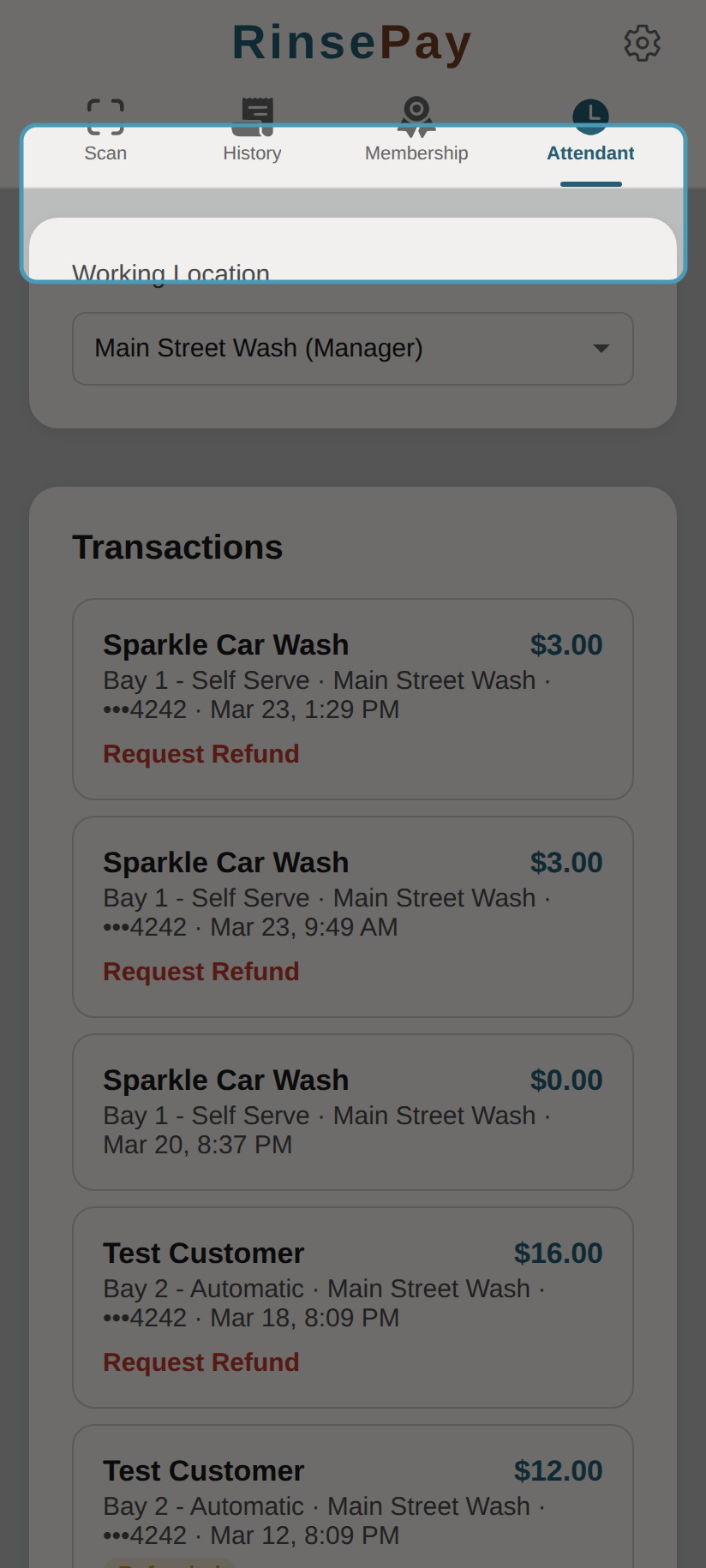
View recent transactions at your location:
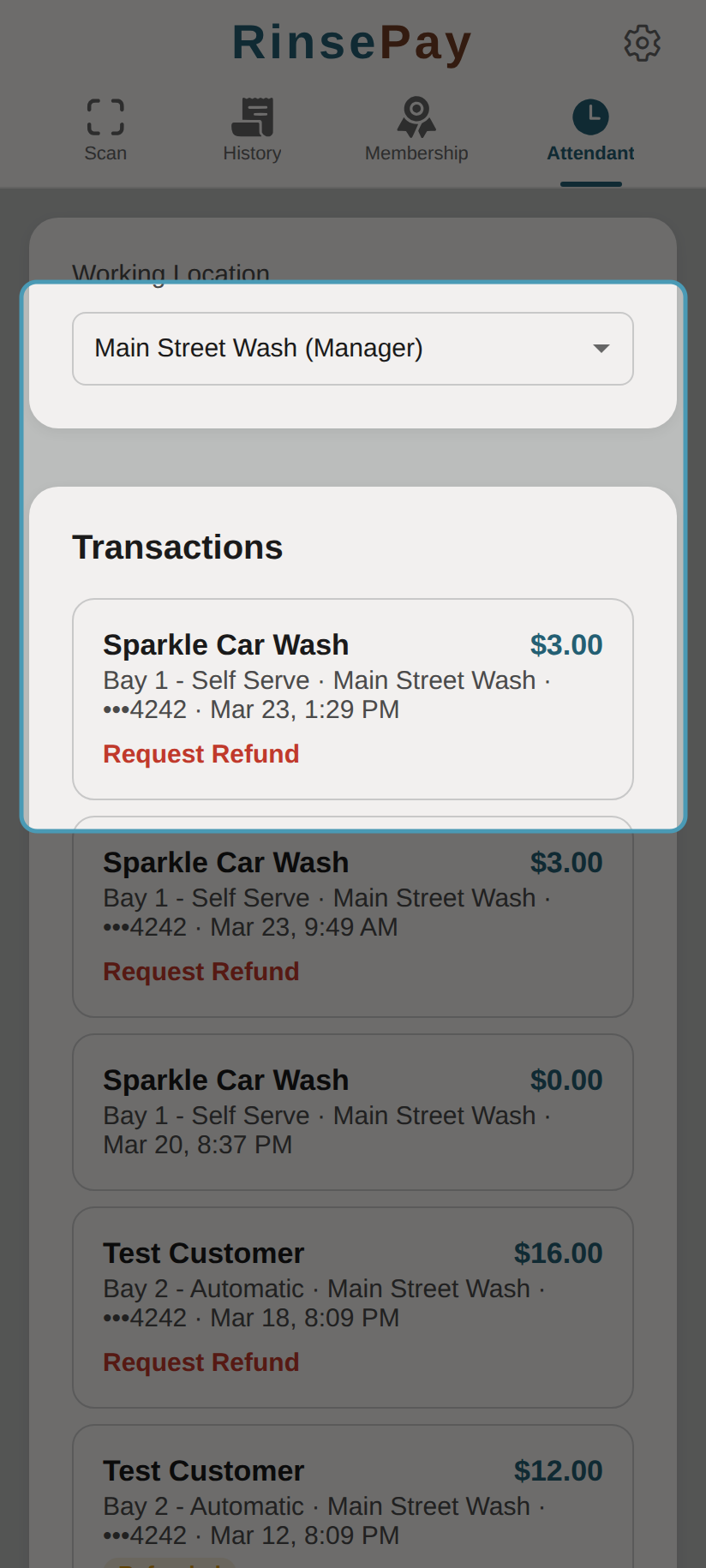
The Attendant tab shows:
- Working Location dropdown — Select which location you're at
- Transactions — Recent washes at your location with details:
- Customer name
- Bay and wash type
- Amount and payment method
- Date and time
- Request Refund option for applicable transactions
Clocking In and Out
- Open the Attendant tab
- Select your working location
- Tap Clock In to start your shift
- When your shift ends, tap Clock Out
- Your shift duration is recorded for the owner to review
Requesting Refunds
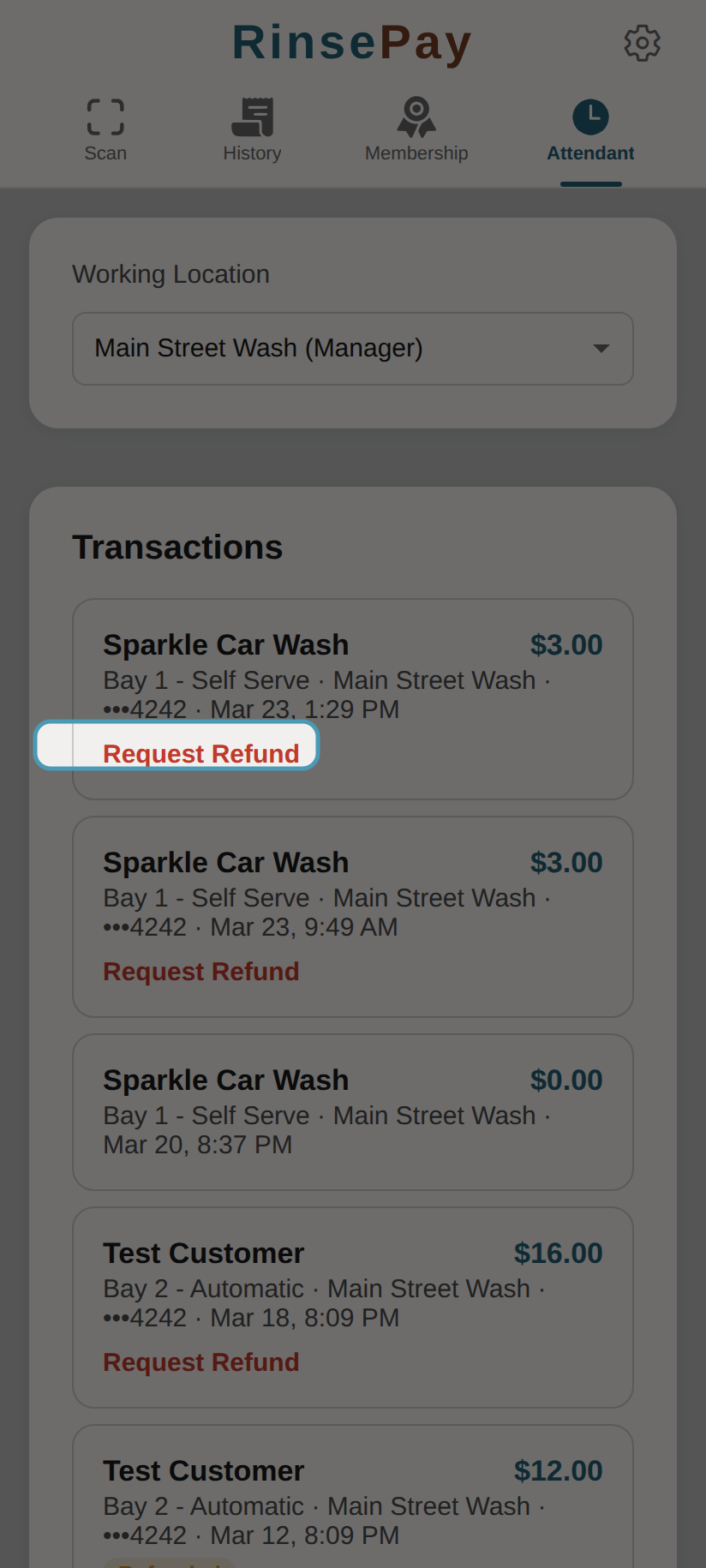
If a customer has an issue with their wash:
- Find the transaction in the Attendant tab
- Tap Request Refund
- The refund request is sent to the location owner for approval
- The customer is notified once the refund is processed
Roles
Attendants can have different permission levels:
- Staff — Clock in/out and view transactions
- Manager — Staff permissions plus view shift reports and request refunds
- Admin — Manager permissions plus edit location settings