Location Setup
Set up your car wash locations and bays in the RinsePay owner dashboard.
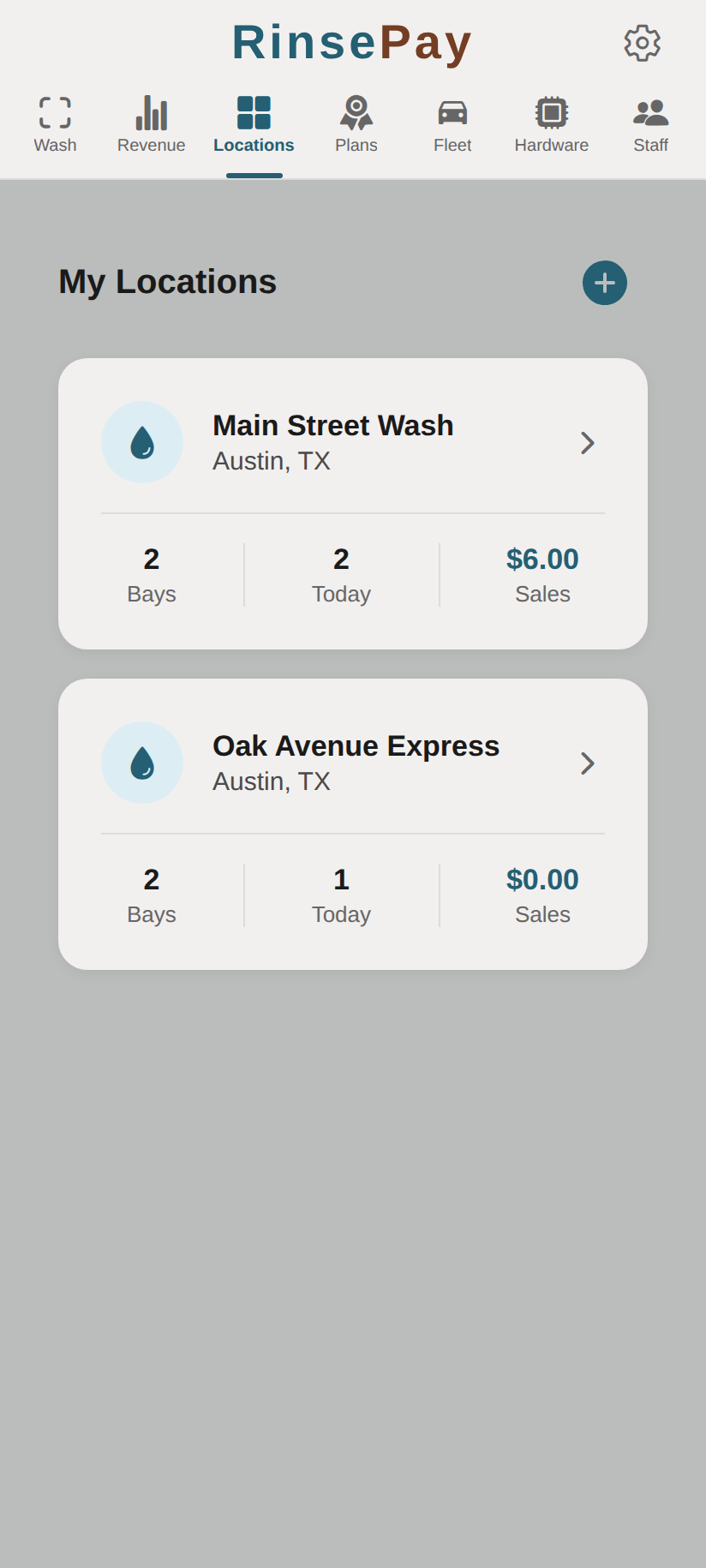
Creating a Location
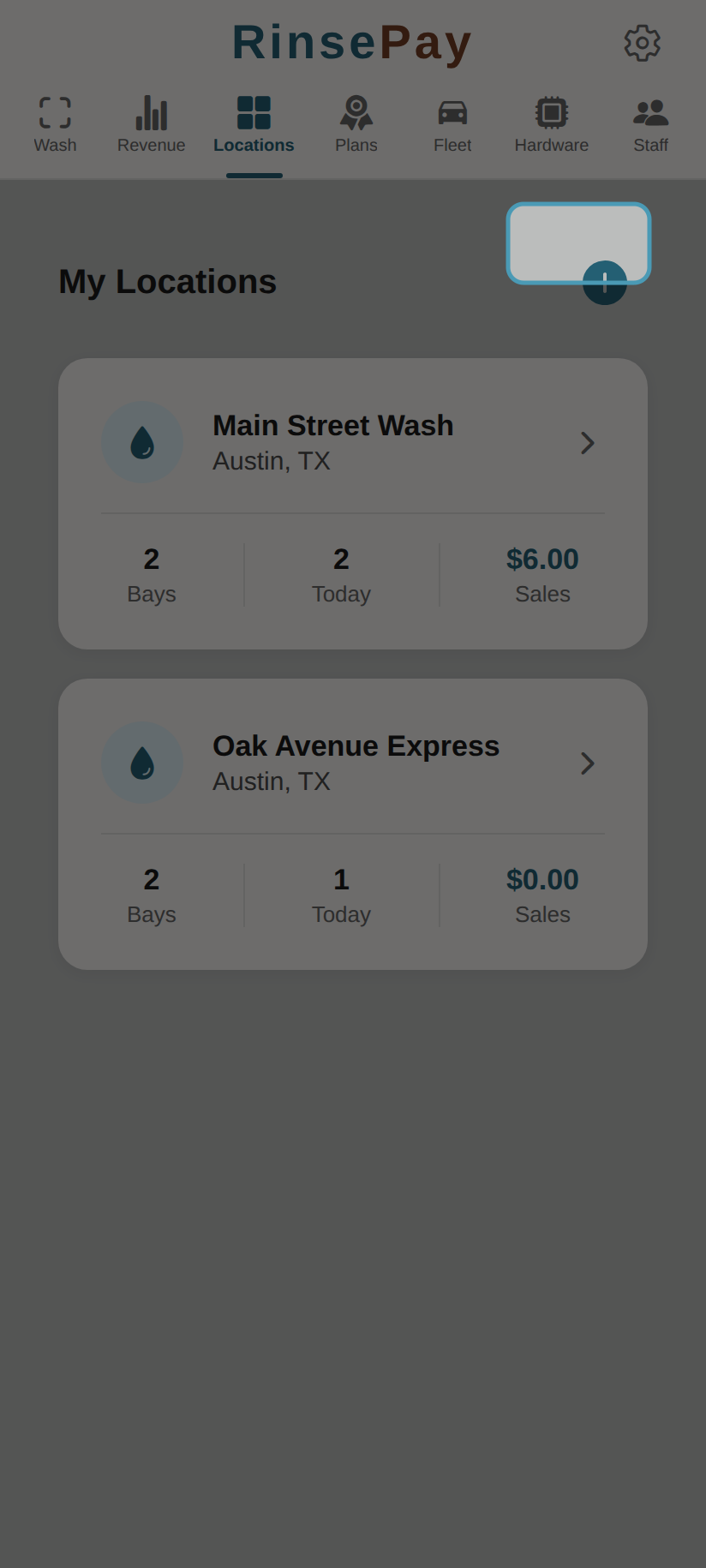
Tap the + button to add a new location:
- Log in to your owner account at rinsepay.app
- Navigate to Locations in the sidebar
- Tap Add Location
- Fill in the location details:
- Name — Your car wash business name
- Address — Street address, city, state, zip
- Support Email — Where customer problem reports are sent
- Phone — Contact number for the location
- Tap Save
Adding Wash Bays
Each location has one or more wash bays. Each bay gets its own QR code.
- Go to your location's detail page
- Tap Add Bay
- Configure the bay:
- Bay Name — e.g., "Bay 1", "Self-Serve Left", "Automatic"
- Bay Type — Self-serve, automatic, or both
- Pricing — Set per-second rates (self-serve) or package prices (automatic)
- Tap Save
- A QR code is generated for this bay — print it and post it at the bay
Editing a Location
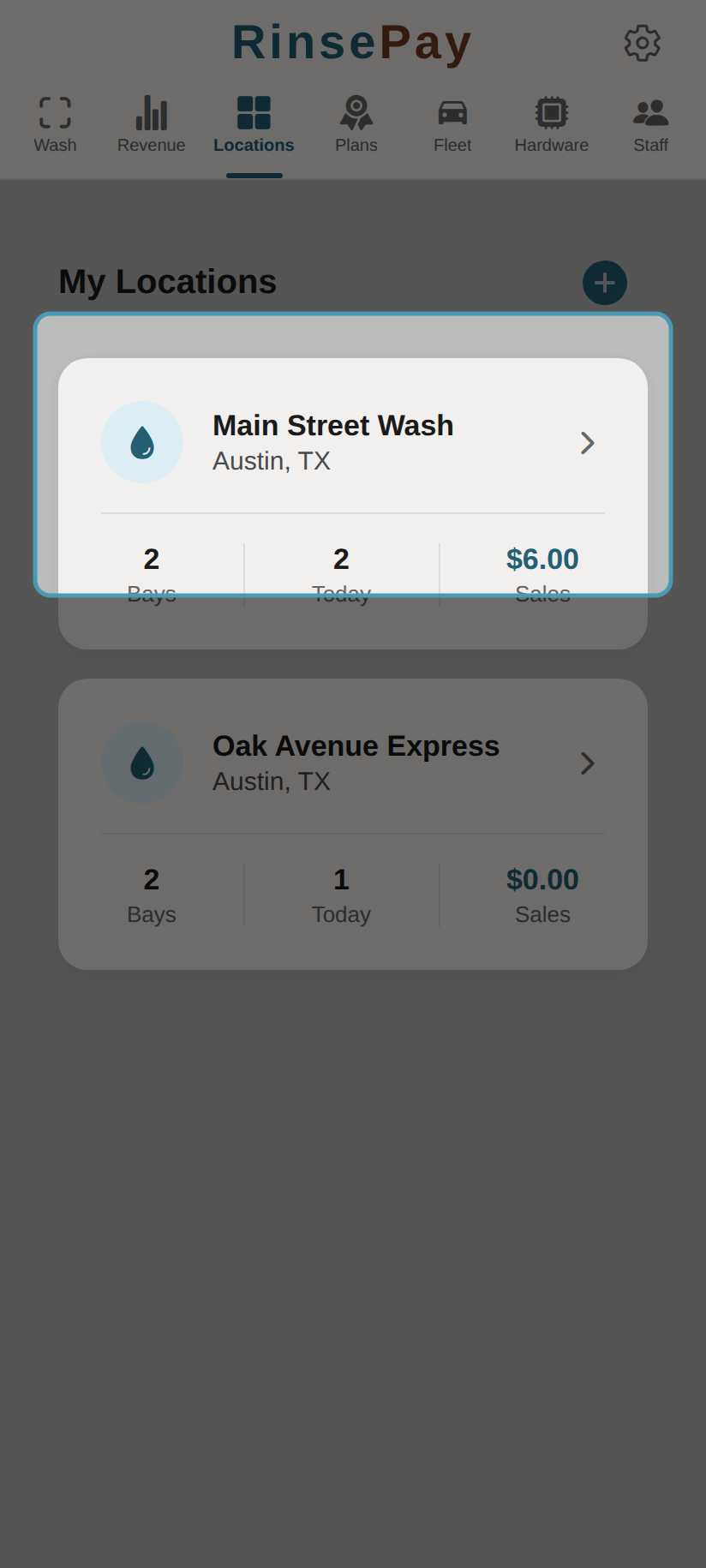
Each location card shows bays, today's transactions, and sales at a glance:
- Go to Locations
- Tap on the location you want to edit
- Tap Edit
- Update the details and save
Editing a Bay
- Navigate to the location
- Tap on the bay
- Tap Edit Bay
- Update pricing, name, or type
- Save changes — the QR code stays the same
QR Codes
- Each bay has a unique QR code that links to
rinsepay.app/wash/{locationId}/{bayId} - Print QR codes and mount them at each bay where customers can easily scan
- QR codes don't change when you edit bay settings