Fleet Manager Guide
If your company has a fleet account with a RinsePay-enabled car wash, you can manage your fleet's wash activity directly from the app.
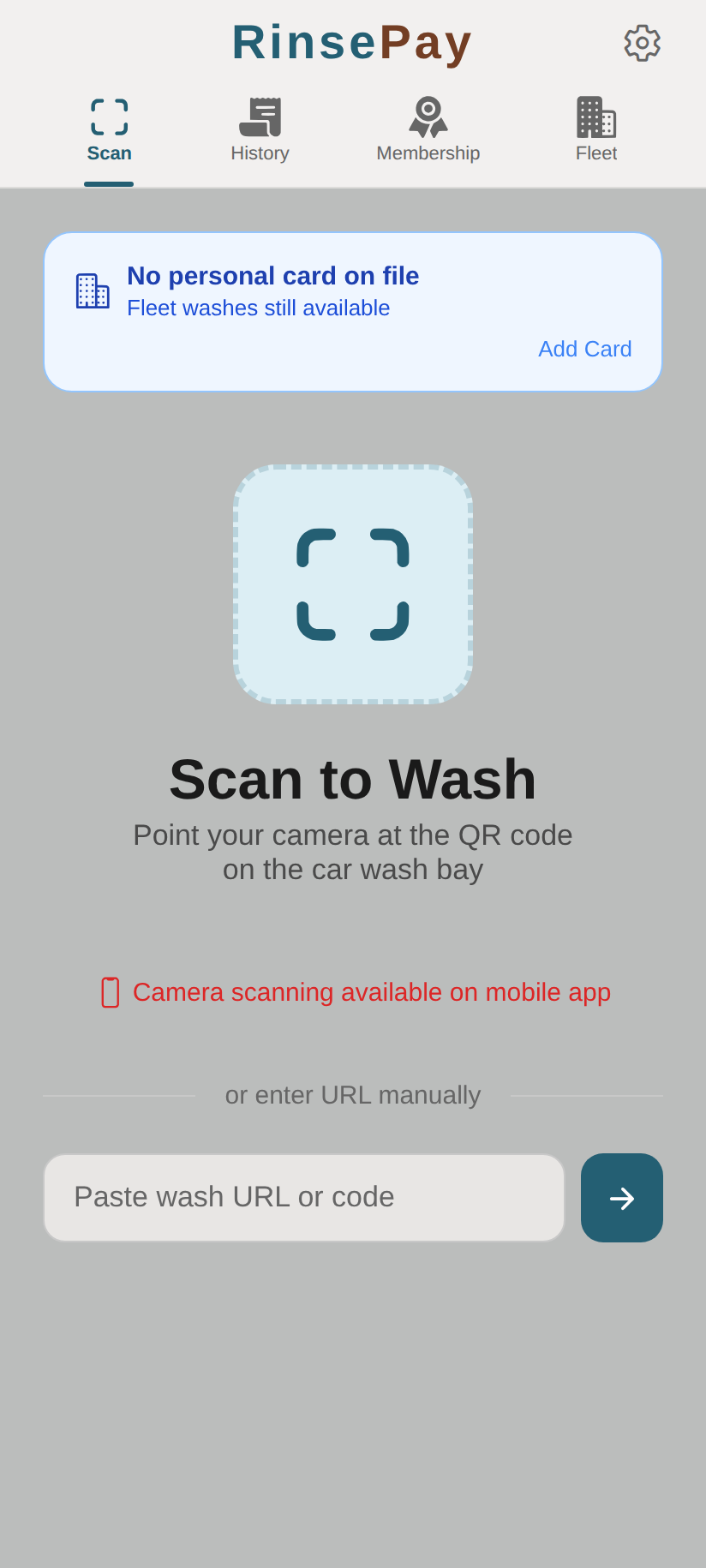
What Fleet Managers Can Do
As a fleet manager, you have access to additional features beyond a regular customer:
- View fleet transactions — See all washes charged to your fleet account
- Manage members — View fleet members and their wash activity
- Track spending — Monitor total fleet wash costs
- Wash on the fleet account — Use any wash bay without a personal payment method
Getting Started
- Your car wash owner will create a fleet account for your company
- You'll receive an invitation to join as a manager
- Create your RinsePay account or log in with your existing account
- The Fleet tab appears in your navigation bar
Fleet Tab
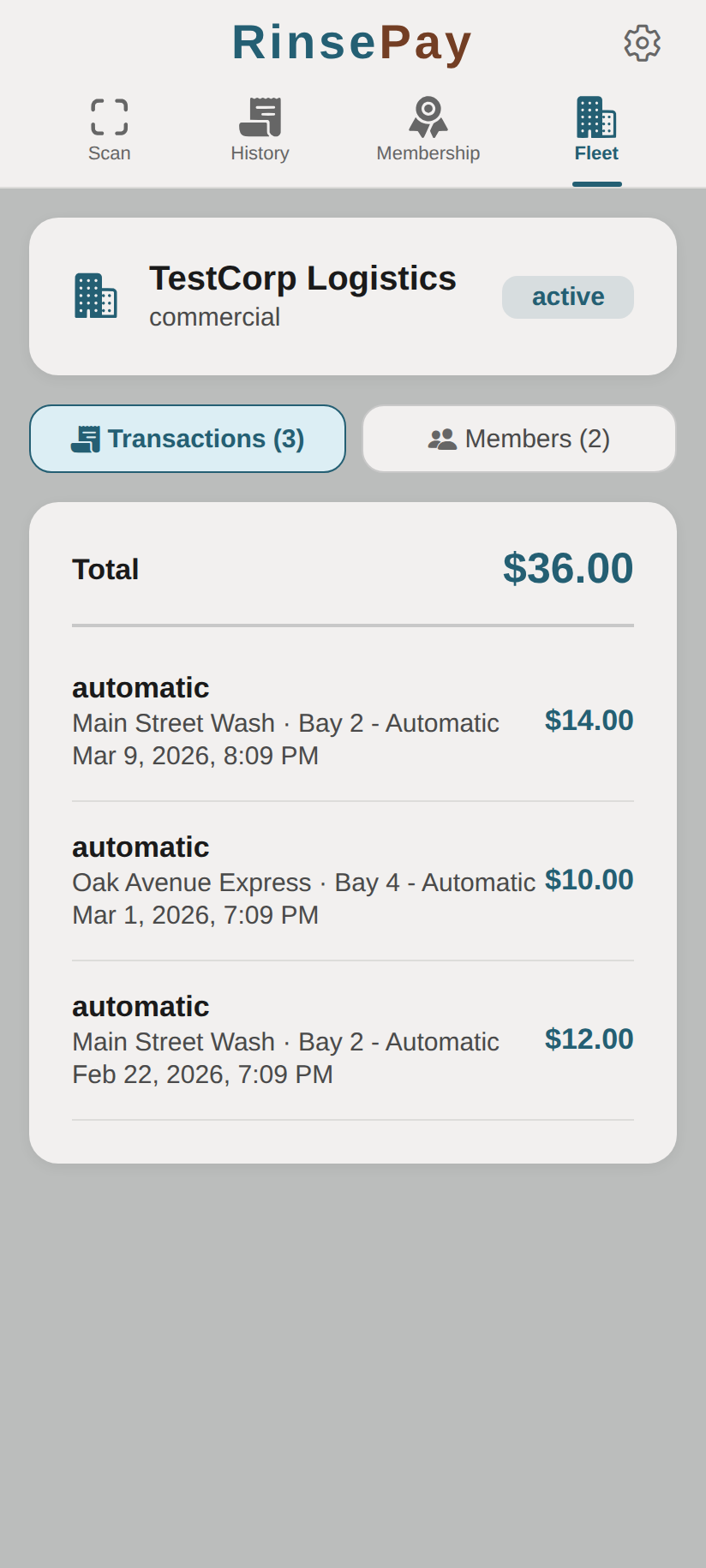
The company header shows your fleet account name and status:
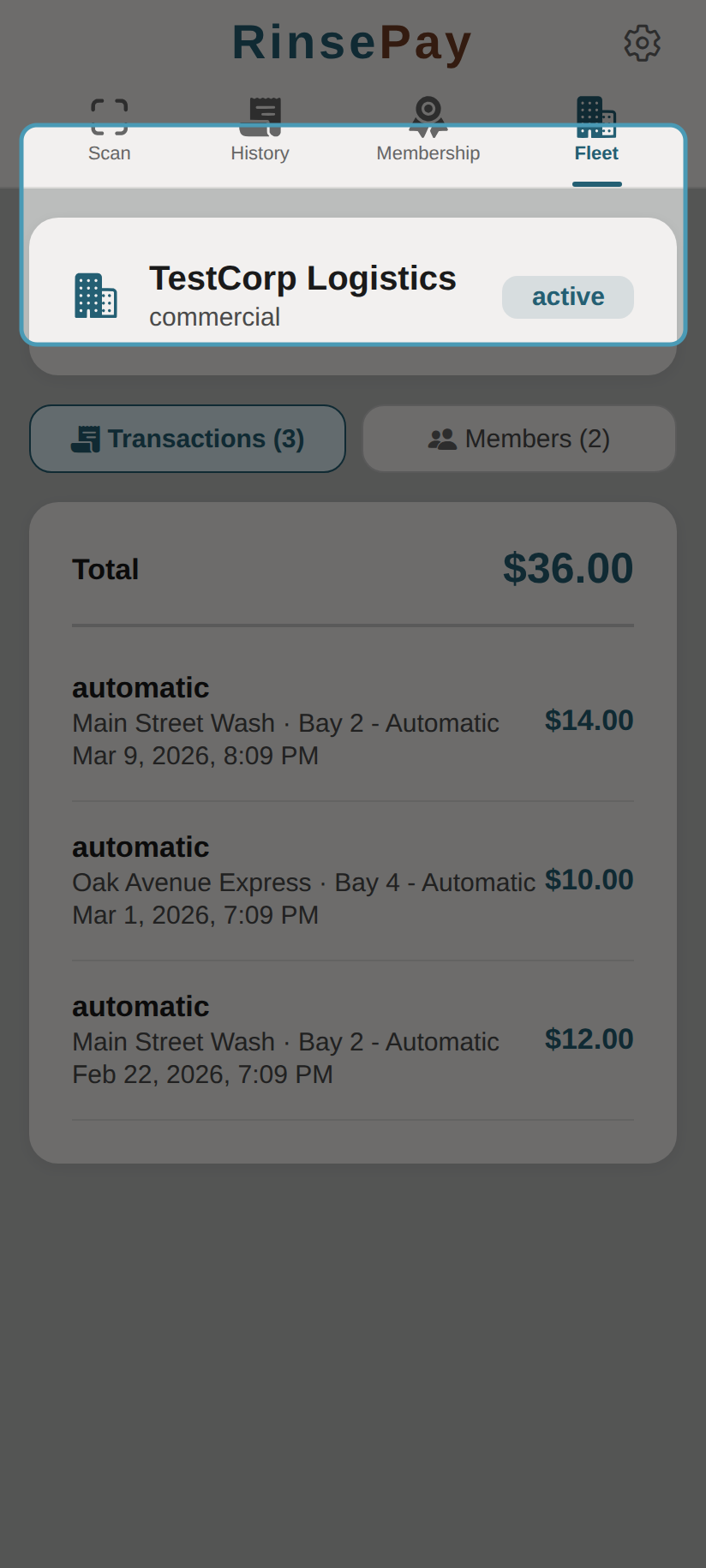
The Transactions tab lists all fleet washes with totals:
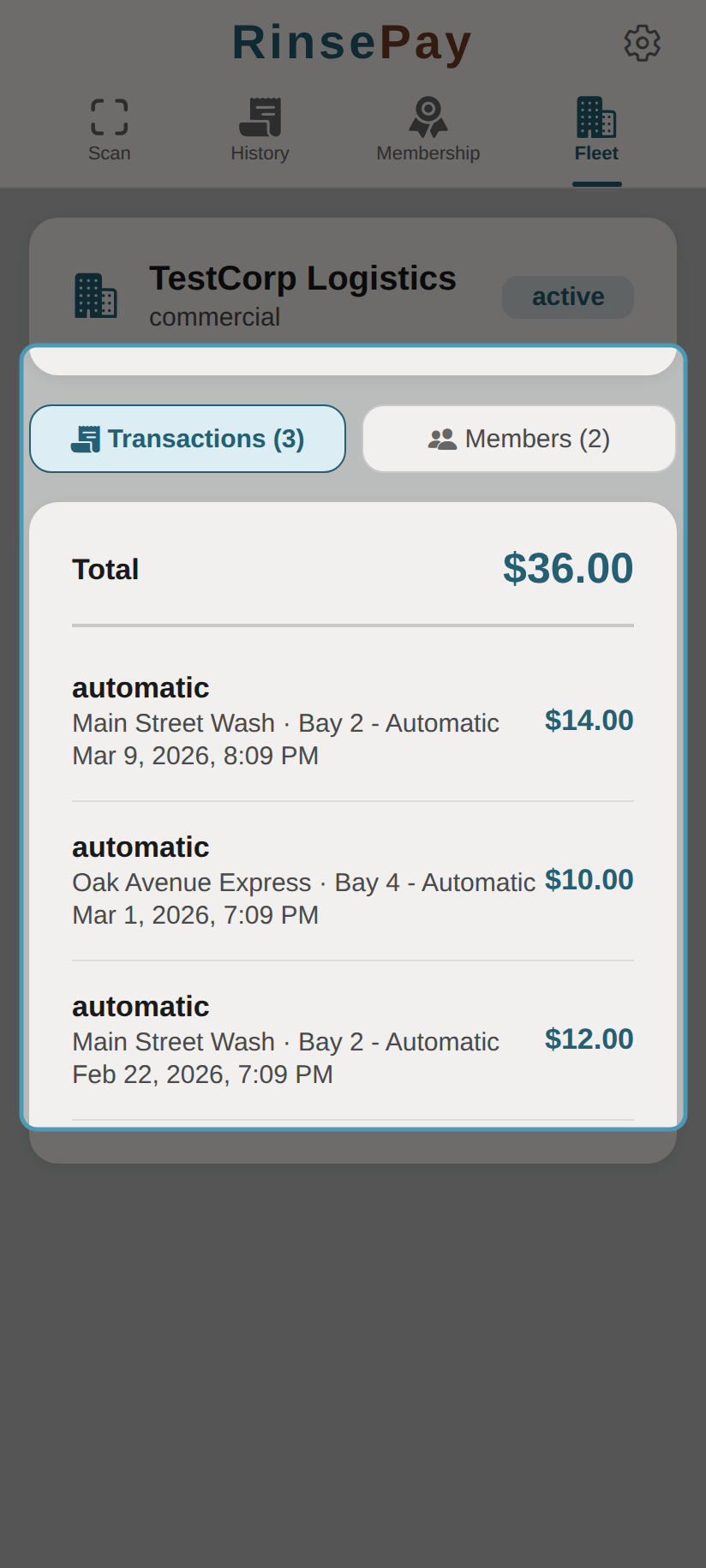
The Fleet tab shows:
- Company name and account status (active/inactive)
- Transactions tab — All fleet washes with location, bay, date, and cost
- Members tab — All fleet members (drivers/vehicles) linked to the account
- Total spending — Running total for the billing period
Washing on a Fleet Account
- Scan the QR code at any participating wash bay
- Your fleet membership is automatically detected
- The wash is charged to the fleet account (not your personal card)
- Fleet managers can still add a personal card for non-fleet washes
Fleet vs. Personal Washes
- If you have both a personal card and a fleet membership, you'll be asked which to use
- Fleet washes appear in both your personal history and the fleet transactions
- Your fleet manager or the car wash owner handles billing for fleet washes