Staff & Attendants
Manage your car wash employees, their roles, and shifts.
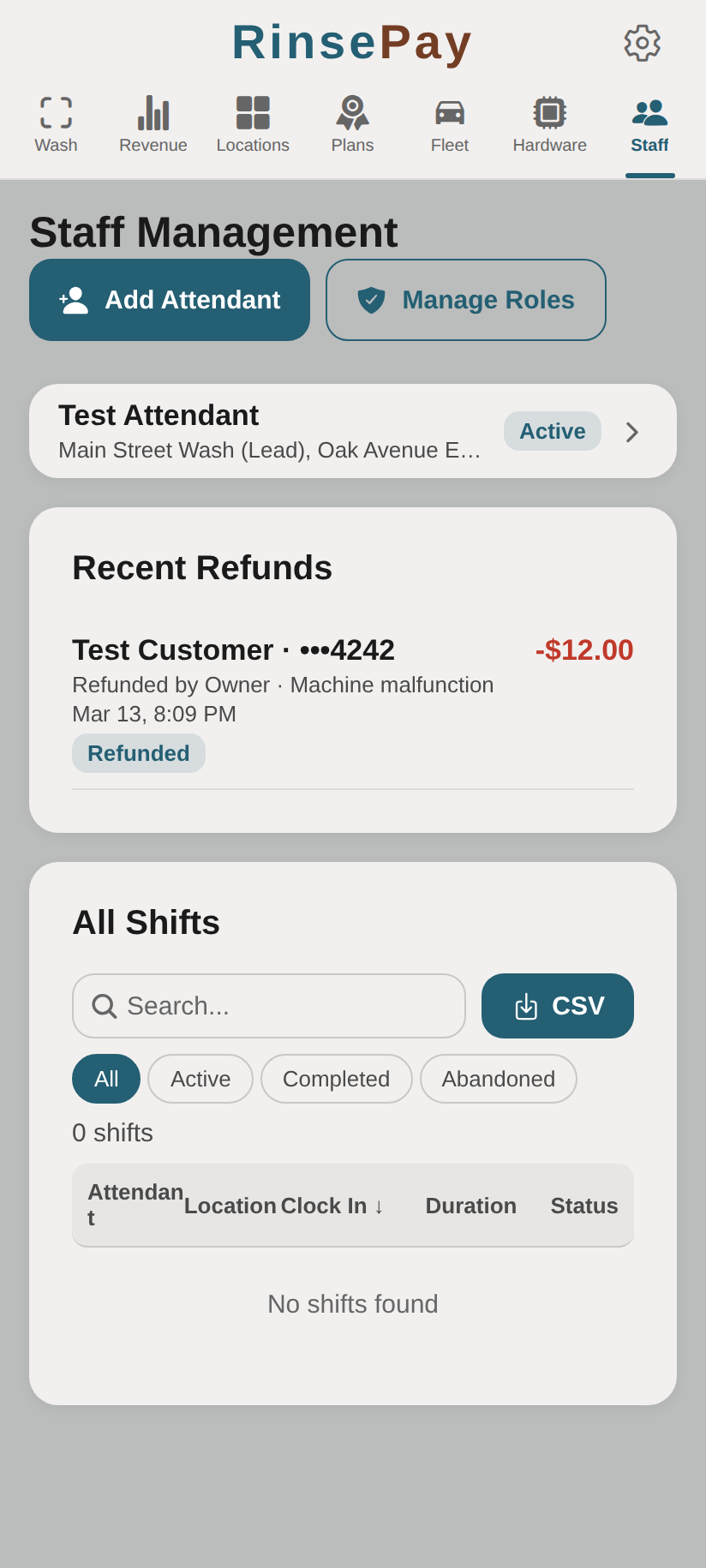
Adding Staff
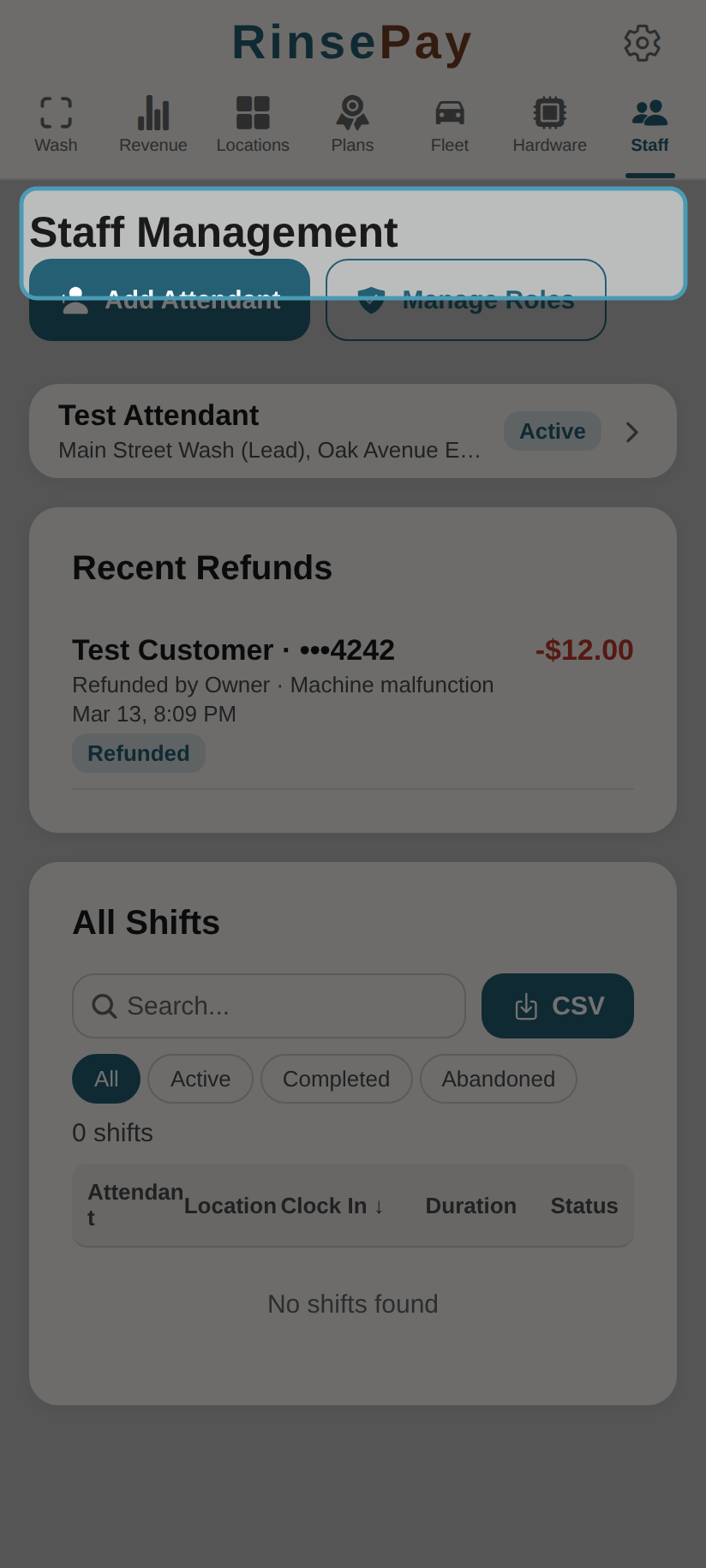
- Navigate to Staff in the owner sidebar
- Tap Add Attendant
- Enter their details:
- Name
- Email — They'll receive an invitation to create their account
- Role — Staff, Manager, Admin, or Super Admin
- Location(s) — Which locations they can work at
- Tap Save
Roles
- Staff — Can clock in/out and operate bays
- Manager — Staff permissions plus view shift reports
- Admin — Manager permissions plus edit location settings
- Super Admin — Full access to all owner features
Shift Management
Attendants can clock in and out from their own account:
- The attendant logs into their RinsePay account
- They see the Attendant tab in their navigation
- Tap Clock In to start a shift
- Tap Clock Out to end a shift
Viewing Shifts
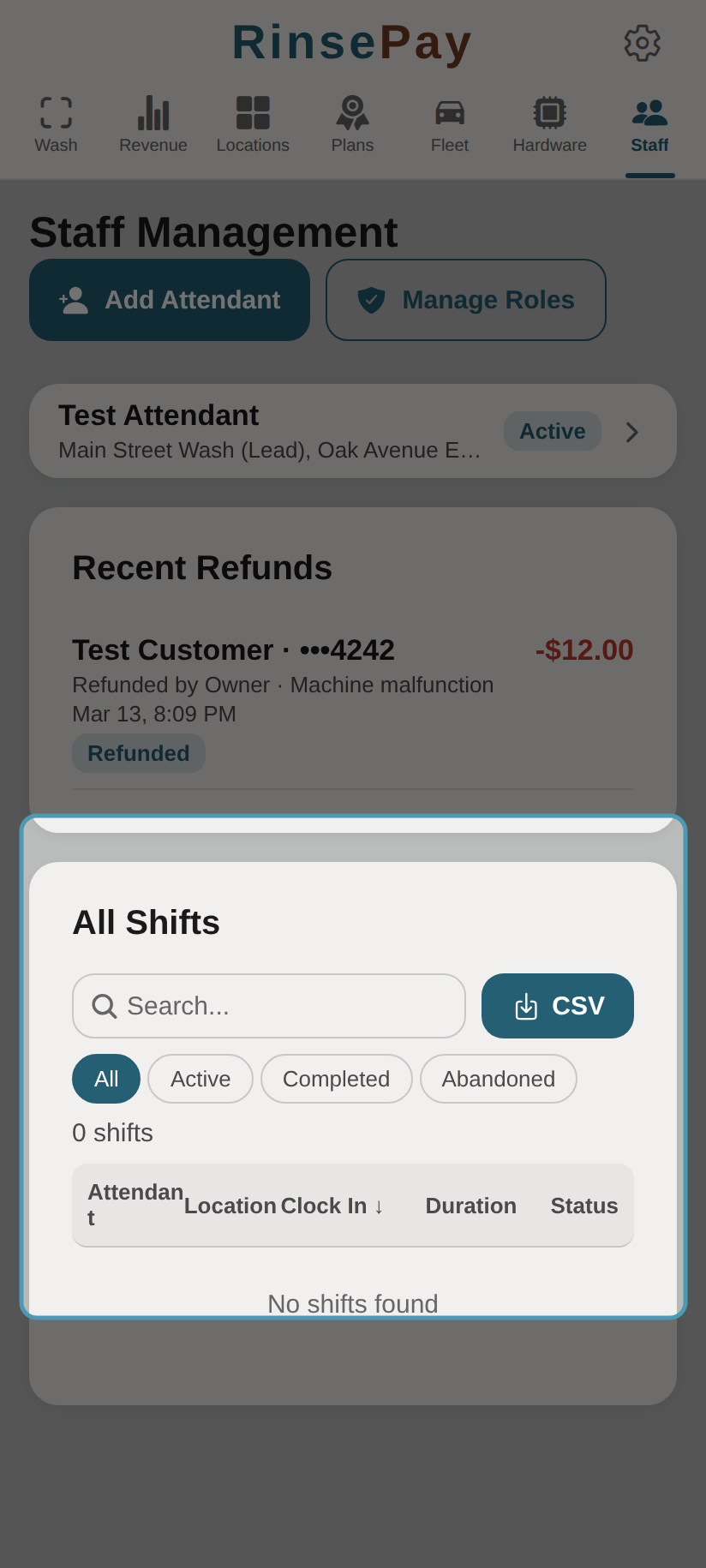
As an owner:
- Go to Staff
- Select an attendant
- View their shift history with clock-in/out times and durations
Managing Staff
- Edit attendant details and role assignments
- View individual shift history
- Assign staff to specific locations
- Remove staff members when they leave